 APIsFreeLLM
How to Combine Visual Inputs for Motion Prompts
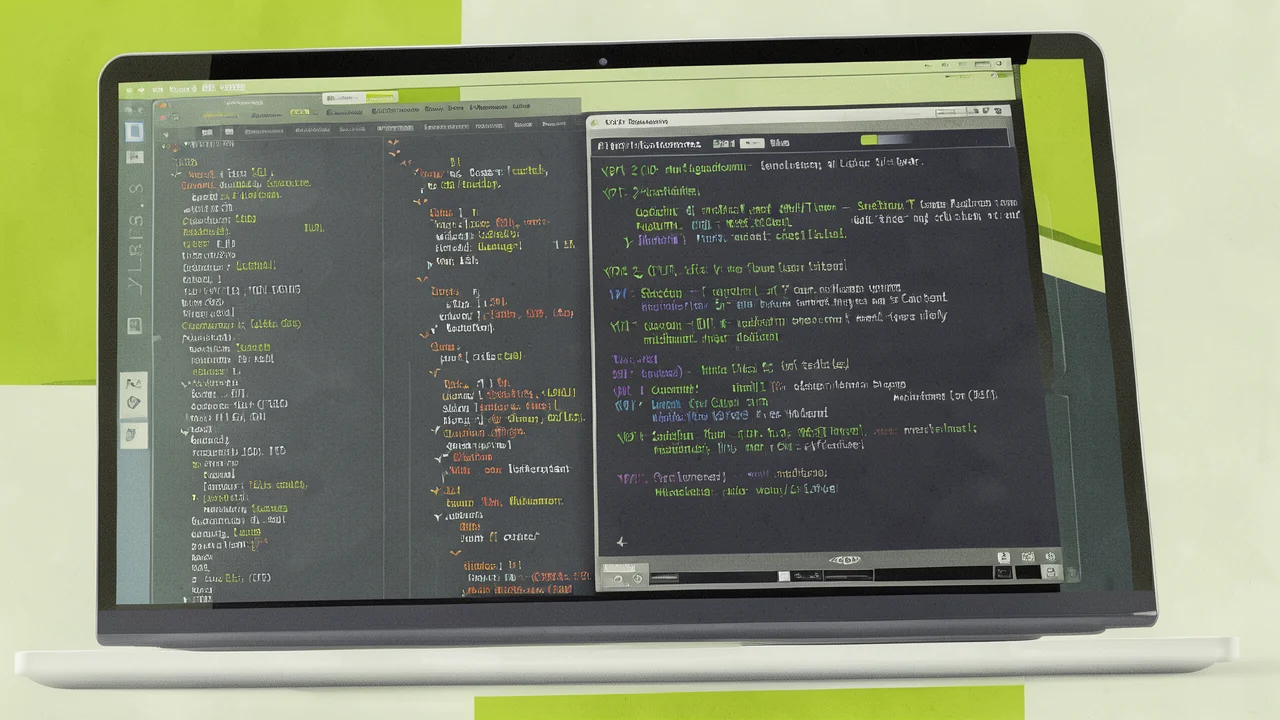
Feeding a single image into a local language model is straightforward, but combining two or three frames to generate a cohesive motion prompt requires a different approach. Users often struggle to get the model to understand transitions between frames, resulting in disjointed camera directions or inconsistent motion descriptions. The challenge lies not in the model's intelligence, but in how the image data is formatted and passed to the API.
The solution involves encoding each image as a Base64 string and structuring the request payload to include multiple image URLs or data URIs within the message content. This allows the model to perceive the relationship between the start, middle, and end states of a scene. By explicitly defining the task in the system prompt, you can guide the model to generate detailed camera movements, lighting changes, and object transitions rather than just describing static elements.
This guide focuses on using Ollama as the local inference engine. While Ollama’s native API has evolved, the underlying principle remains: the model must receive a structured array of visual inputs alongside textual instructions. We will walk through the Python script required to handle this, discuss token limits, and explain how to optimize the output for video generation workflows. You can also compare this local approach with uncensored models if you need less restrictive creative freedom in your prompts.
Frequently asked questions
What is multimodal input in Ollama?
Multimodal input refers to the ability of a vision-language model to process both text and images simultaneously. In Ollama, this means sending a JSON payload where the message content includes both a string for text instructions and a dictionary for image data, allowing the model to reason across visual and textual modalities.
How does Ollama handle multiple images compared to single image?
When handling multiple images, Ollama expects an array of image objects within the message content. Each image is processed independently but then combined in the model’s attention mechanism. This allows the model to compare features across frames, enabling it to infer motion vectors and temporal changes that a single image cannot provide.
Which is better for multi-image tasks: local Ollama or hosted API?
Local Ollama offers privacy and no per-token costs, which is ideal for iterative prompt engineering. Hosted APIs often provide larger context windows and more powerful vision models out-of-the-box. However, for generating motion prompts, local models give you full control over the system prompt and temperature, allowing for more creative or specific outputs without external constraints.
What is the token limit for multiple images in Ollama?
Token limits depend on the specific model you are running. Most modern vision models in Ollama support a context window of 4,000 to 128,000 tokens. Each image consumes a significant portion of this context, typically several hundred tokens. You must ensure your total token usage (images + text) does not exceed the model’s maximum context length.
How do I format the system prompt for motion generation?
The system prompt should explicitly define the role, such as 'You are a cinematic director assistant.' It should instruct the model to analyze the temporal relationship between images and output a JSON object containing camera movement, lighting changes, and object motion. Clear instructions reduce hallucination and ensure the output is usable for video generation tools.
What is the difference between base64 and URL image input?
Base64 strings embed the image data directly in the JSON payload, which is self-contained but increases payload size. URL inputs require the model’s environment to fetch the image from a provided link. Base64 is more reliable for local setups where external network access might be restricted or inconsistent during inference.
Which is better for minimal footprint: Ollama or llama.cpp?
Ollama provides a user-friendly API wrapper and built-in model management, making it easier to get started. llama.cpp forks offer more granular control over quantization and memory usage, which is beneficial if you are running on hardware with limited resources. For multi-image tasks, Ollama’s abstraction layer handles the complex tokenization of images more seamlessly for most users.
What is the best uncensored AI chatbot for creative prompts?
The best model depends on your hardware and specific needs. Uncensored models often allow for more vivid and less constrained descriptions of motion and lighting. Models like Qwen or Llama variants fine-tuned for creative writing are popular choices. You can explore uncensored models to find one that balances detail with responsiveness.
Step by step
- Prepare Images — Select two or three images that represent the start, middle, and end of your desired motion. Ensure they are ordered chronologically and saved in a format supported by the model, such as JPEG or PNG.
- Encode Images — Read each image file in binary mode and encode it using Base64. Prepend the appropriate MIME type header to each encoded string to ensure the model can correctly identify the image format.
- Construct Payload — Create a JSON payload with a system prompt defining the model’s role and a user message containing the encoded images and text instructions. Ensure the payload structure matches Ollama’s API requirements.
- Send Request — Send the payload to the Ollama API endpoint using a POST request. Handle the response to extract the generated motion prompt, ensuring to parse the JSON output for further use in your video generation pipeline.
Understanding Multimodal Input Structure
To generate motion prompts from multiple images, you must first understand how Ollama expects visual data. The model does not accept raw image files directly; it requires the images to be encoded. The most common method is Base64 encoding, which converts binary image data into a text string that can be embedded in a JSON payload. This ensures that the image data travels with your request without requiring external network fetches.
The input structure typically involves a message array. Each message contains a role (such as 'user') and content. The content field is an array of objects. Some objects are strings representing your text instructions, while others are dictionaries specifying the 'type' as 'image_url' and providing the image data. This structure allows the model to process multiple images in a single request, enabling it to compare frames and infer temporal relationships.
Base64 Encoding Essentials
Base64 encoding is the standard way to include images in API requests. You read the image file in binary mode and encode it to a string. This string is then prefixed with a MIME type header, such as 'data:image/jpeg;base64,'. This prefix helps the model’s vision encoder identify the format and decode the data correctly before processing.
JSON Payload Construction
The JSON payload must be carefully structured. The 'messages' array contains your system and user prompts. The user message’s content array interleaves text instructions with image objects. Each image object must include the full Base64 string. Ensure that the total payload size, including all Base64 strings, does not exceed your network or model’s limits.
- Read image file in binary mode
- Encode using base64 module
- Prepend MIME type header
- Embed in JSON content array
import base64
import json

def encode_image(image_path):
    with open(image_path, 'rb') as image_file:
        return base64.b64encode(image_file.read()).decode('utf-8')

# Example usage
def prepare_payload(image_paths, prompt):
    images = []
    for path in image_paths:
        encoded = encode_image(path)
        images.append({
            'type': 'image_url',
            'image_url': {'url': f'data:image/jpeg;base64,{encoded}'}
        })
    return {'messages': [{'role': 'user', 'content': images + [{'type': 'text', 'text': prompt}]}]}
Configuring the System Prompt
The system prompt defines the behavior of the model. For multi-image motion generation, your system prompt should instruct the model to act as a cinematic director or video editor. It needs to know that it is analyzing a sequence of images to determine camera movement, object motion, and lighting transitions. A clear role definition reduces ambiguity and improves the quality of the generated prompt.
Specify the desired output format. If you are feeding the output into a video generation tool, define a strict JSON schema. Request fields such as 'camera_movement', 'object_motion', 'lighting_change', and 'transition_type'. This structure ensures that the output is machine-readable and directly usable in your automation workflow, reducing the need for post-processing.
Defining the Role
Start the system prompt with a clear role definition. For example, 'You are an expert cinematic director.' This primes the model to use relevant terminology and focus on visual dynamics rather than static descriptions. It sets the tone for the analysis and ensures that the output is tailored to video production needs.
Output Format Specification
Explicitly state that the output must be in JSON format. List the required keys and their expected data types. For instance, 'camera_movement' should be a string describing pan, tilt, or zoom. This precision helps the model avoid generating verbose, unstructured text that is difficult to parse programmatically.
- Set role as cinematic director
- Define output as JSON
- Specify required keys
- Request specific motion terms
system_prompt = """You are an expert cinematic director. Analyze the provided images to generate a motion prompt for video generation. Output a JSON object with keys: camera_movement, object_motion, lighting_change, and transition_type. Be concise and technical."""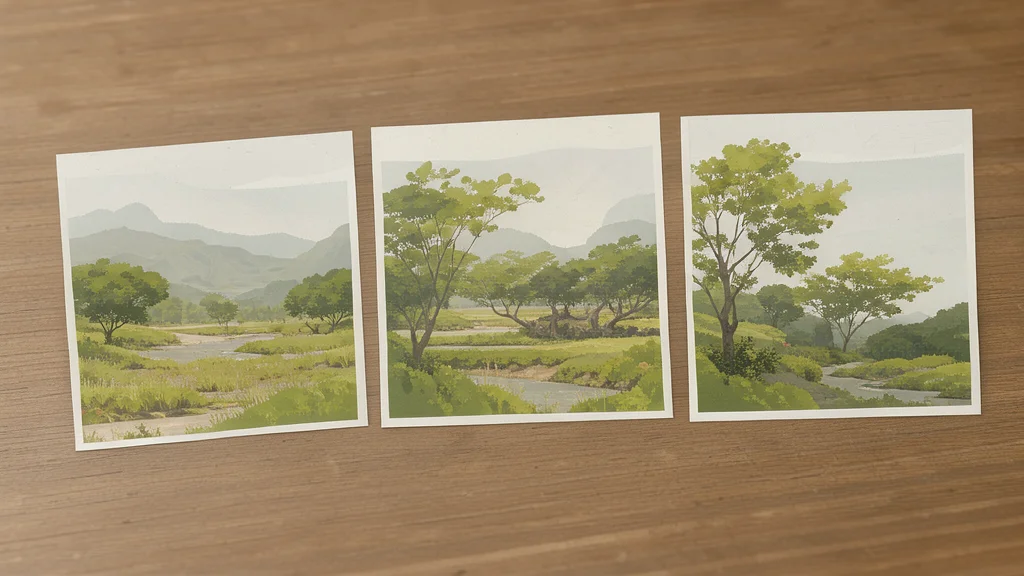
Handling Multiple Image Inputs
When processing multiple images, order matters. The model interprets the sequence of images as a temporal sequence. Ensure that the images are ordered correctly, from start to end, in the payload. The model will use this sequence to infer the direction and nature of the motion. If the images are unordered, the generated motion prompt may be inconsistent or illogical.
Be mindful of the context window. Each image consumes a significant number of tokens. If you include too many high-resolution images, you may exceed the model’s context limit, leading to truncation or errors. It is often best to limit the input to two or three images for motion generation, as this provides enough context for the model to infer transitions without overwhelming the token budget.
Sequential Ordering
Ensure that the images are added to the payload in chronological order. The first image represents the start state, and the last image represents the end state. The model uses this sequence to calculate the vector of change. Incorrect ordering can result in reversed or nonsensical motion descriptions.
Token Budget Management
Monitor the token count. High-resolution images can consume thousands of tokens. If you are using a model with a limited context window, consider resizing images or using lower resolutions. This ensures that the model has enough capacity to process the text instructions and generate a high-quality response.
- Order images chronologically
- Monitor token usage
- Resize high-res images if needed
- Limit to 2-3 images for clarity
# Example of adding multiple images to payload
payload = {
    'model': 'llava',
    'messages': [
        {'role': 'system', 'content': system_prompt},
        {'role': 'user', 'content': [
            {'type': 'image_url', 'image_url': {'url': f'data:image/jpeg;base64,{encode_image("img1.jpg")}'}},
            {'type': 'image_url', 'image_url': {'url': f'data:image/jpeg;base64,{encode_image("img2.jpg")}'}},
            {'type': 'text', 'text': 'Generate motion prompt.'}
        ]}
    ]
}
Running the Inference Request
Once the payload is prepared, send it to the Ollama API endpoint. The endpoint is typically 'http://localhost:11434/api/chat'. Use the 'POST' method and include the payload in the request body. Ollama will process the request, encode the images, and run the model to generate the response. Ensure that Ollama is running and the correct model is pulled and ready.
API Endpoint Configuration
The Ollama API runs locally on port 11434 by default. The 'chat' endpoint is used for multimodal interactions. Ensure that the request headers include 'Content-Type: application/json'. This ensures that the server correctly parses the incoming data as JSON.
Handling Responses
The response will be a JSON object containing the model’s output. Parse the 'message' field to extract the generated text. If the output is in JSON format, parse it into a dictionary for further processing. Handle any errors, such as context window exceeded or model not found, by checking the response status code.
- Send POST request to /api/chat
- Set Content-Type header
- Parse response JSON
- Handle error codes
import requests

response = requests.post('http://localhost:11434/api/chat', json=payload)
if response.status_code == 200:
    result = response.json()
    print(result['message']['content'])
else:
    print(f'Error: {response.status_code}')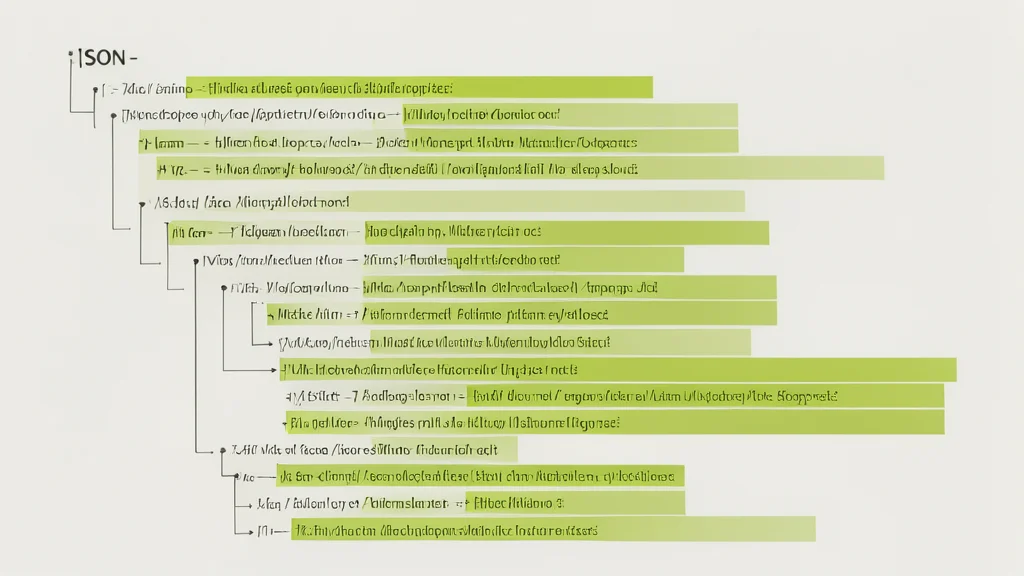
Optimizing for Video Generation
The generated motion prompt can be directly used in video generation tools. However, to maximize compatibility, ensure that the prompt includes specific technical details such as frame rate, resolution, and aspect ratio if required by the target tool. Some video generators require additional parameters that the LLM may not include by default, so you may need to append these manually.
Prompt Refinement
Review the generated prompt for clarity and specificity. If the model’s output is too vague, refine the system prompt to request more detail. For example, specify that 'camera_movement' should include terms like 'dolly in', 'pan left', or 'zoom out'. This ensures that the motion is accurately translated into video.
Automation Integration
Integrate the LLM output into your video generation pipeline. Use a script to parse the JSON output and pass the values to the video generation API. This creates an end-to-end automation workflow where images are input, motion prompts are generated, and videos are created without manual intervention.
- Append technical parameters
- Refine system prompt for detail
- Parse JSON output
- Automate video generation pipeline
# Example of parsing and using output
import json
output_json = json.loads(result['message']['content'])
camera_move = output_json.get('camera_movement', '')
object_move = output_json.get('object_motion', '')
# Pass to video generator
video_generator.generate(prompt=f"{camera_move}, {object_move}")
Troubleshooting Common Issues
Common issues include context window exceeded, image encoding errors, and model hallucinations. If the context window is exceeded, reduce the number of images or their resolution. Ensure that the Base64 string is correctly formatted and does not contain newlines or spaces that could break the JSON structure. If the model hallucinates, refine the system prompt to be more specific about the desired output format.
Context Window Errors
If you receive an error indicating that the context window is exceeded, reduce the number of images or use smaller images. Each image consumes a significant portion of the context window, so minimizing the number of inputs can help stay within limits.
Image Encoding Errors
Ensure that the Base64 string is correctly encoded. Check for any extra whitespace or newlines that could break the JSON structure. Use a reliable Base64 encoding library and verify that the MIME type prefix is correct.
- Reduce image count or resolution
- Check Base64 encoding format
- Refine system prompt for clarity
- Verify MIME type prefix
# Example of error handling
try:
    response = requests.post('http://localhost:11434/api/chat', json=payload)
    response.raise_for_status()
    result = response.json()
except requests.exceptions.HTTPError as e:
    print(f'HTTP Error: {e}')
except Exception as e:
    print(f'Error: {e}')
Comparing Local vs Hosted Approaches
Using Ollama locally offers privacy and no per-token costs, which is ideal for iterative prompt engineering. However, hosted APIs often provide larger context windows and more powerful vision models out-of-the-box. For multi-image tasks, local models give you full control over the system prompt and temperature, allowing for more creative or specific outputs without external constraints.
Privacy and Cost
Local inference keeps your data on your machine, ensuring privacy. There are no per-token costs, making it cost-effective for high-volume usage. Hosted APIs charge per token, which can add up if you are processing many images and generating long prompts.
Model Quality and Speed
Hosted APIs often have access to the latest and most powerful models, which may provide higher quality outputs. Local models are limited by your hardware, but you can choose models that balance speed and quality. Qwen models are a good option for local inference due to their efficiency and performance.
- Local: Privacy, no cost
- Hosted: Larger context, better models
- Local: Full control
- Hosted: Faster inference on high-end hardware
# Example of switching between local and hosted
if use_local:
    url = 'http://localhost:11434/api/chat'
else:
    url = 'https://api.apisfreellm.com/v1/chat/completions'
# Adjust payload structure if needed for hosted API
Advanced Techniques and Best Practices
For advanced users, consider using temperature and top_p parameters to control the creativity and randomness of the output. A lower temperature results in more deterministic and precise motion descriptions, while a higher temperature allows for more creative and varied interpretations. Experiment with these parameters to find the right balance for your use case.
Temperature and Top-P
Adjust the temperature to control the randomness of the output. A temperature of 0.2 is suitable for technical prompts, while 0.7 allows for more creative descriptions. Top_p controls the diversity of the output by limiting the probability mass of the next token.
Iterative Refinement
Iteratively refine the system prompt based on the output. If the model consistently misses certain details, add them to the prompt. Use feedback loops to improve the quality of the generated motion prompts over time. This iterative process helps in achieving the desired level of detail and accuracy.
- Adjust temperature for creativity
- Use top_p for diversity
- Iterate on system prompt
- Feedback loop for improvement
# Example of setting parameters
payload['temperature'] = 0.2
payload['top_p'] = 0.9
# These parameters can be added to the Ollama request payload
Test a hosted free uncensored LLM before you download anything and see how it handles your most demanding prompts.
Home →