 APIsFreeLLM
Maximizing Performance on 96GB GPUs with Smart KV Cache Tuning
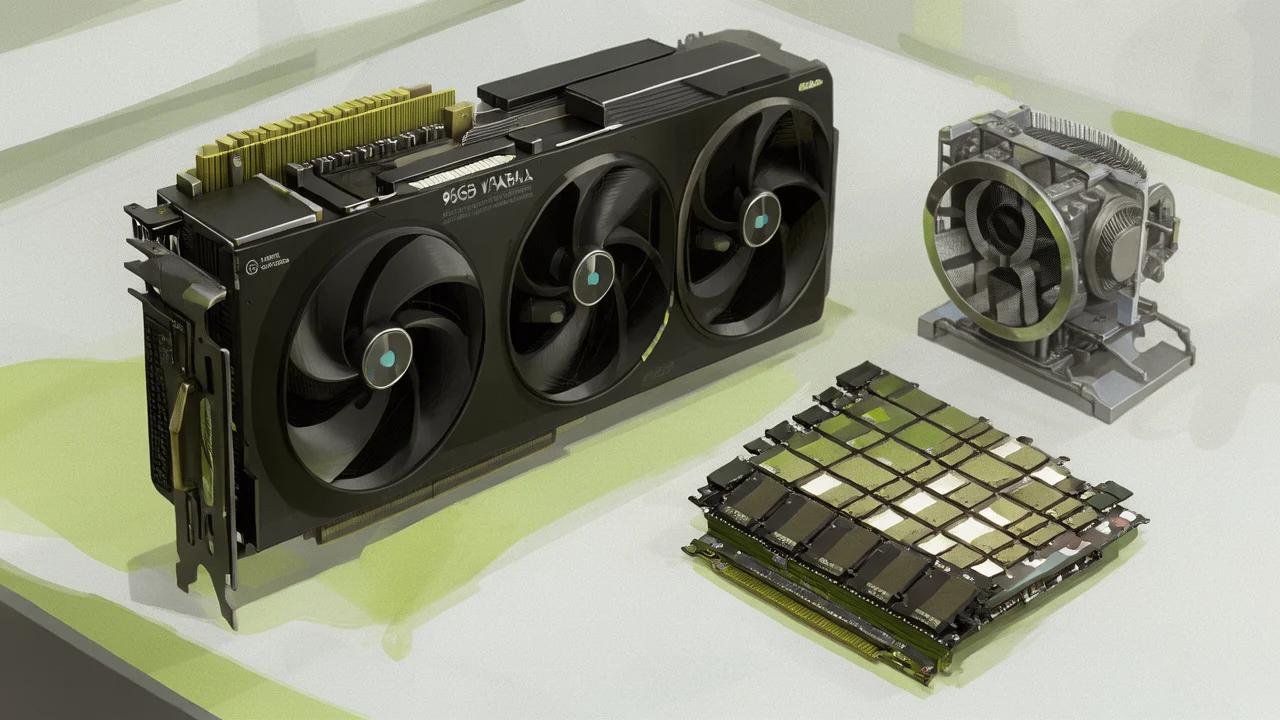
High-end workstation GPUs like the RTX 6000 with 96GB of VRAM have become the preferred hardware for running large language models locally. This capacity allows users to load models with 30 to 50 billion parameters in high precision, enabling complex reasoning and code generation without relying on external APIs. However, raw model size is only half the equation; the other half is managing the memory overhead that often causes these systems to crash during extended sessions.
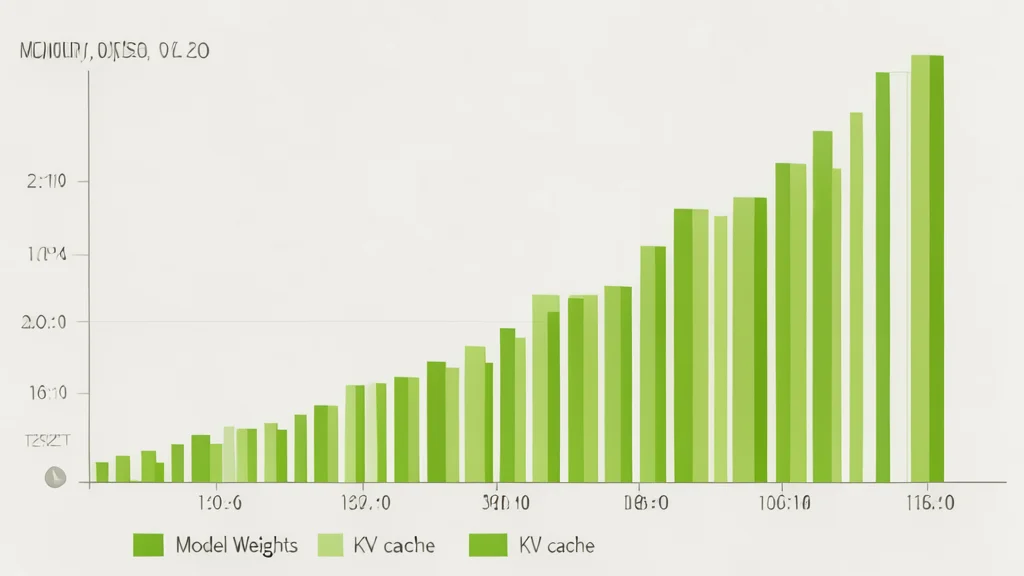
A common complaint among local LLM users is the unpredictable memory usage during long-running tasks. While the model weights might fit comfortably into the available VRAM, the Key-Value (KV) cache can grow exponentially as conversations lengthen. This growth leads to memory explosions, forcing the system to offload data to slower RAM or terminate the process entirely. Understanding this dynamic is crucial for maintaining stability in 24/7 coding workflows.
This guide addresses the specific challenges of selecting models and configuring inference engines for maximum efficiency. We will explore how to balance model size with context window requirements, troubleshoot KV cache leaks, and optimize your setup for long-running tasks. The goal is to provide a clear path to running powerful models reliably on your hardware, whether you are building agents or reviewing code.
For a deeper dive into the trade-offs between local and hosted setups, see Local vs Hosted Memory: Managing Long Contexts.
Frequently asked questions
What is the KV cache?
The KV cache stores the attention states (Keys and Values) generated during previous token predictions. It allows the model to process new tokens without re-evaluating the entire conversation history. As the context window expands, the KV cache grows linearly with the number of tokens, consuming significant VRAM.
What is VRAM?
Video RAM is the dedicated memory on your graphics card. It is significantly faster than system RAM and is used to store model weights, activations, and the KV cache. When VRAM is full, the system may swap data to slower system RAM, causing a dramatic drop in inference speed.
How does KV cache differ from model weights?
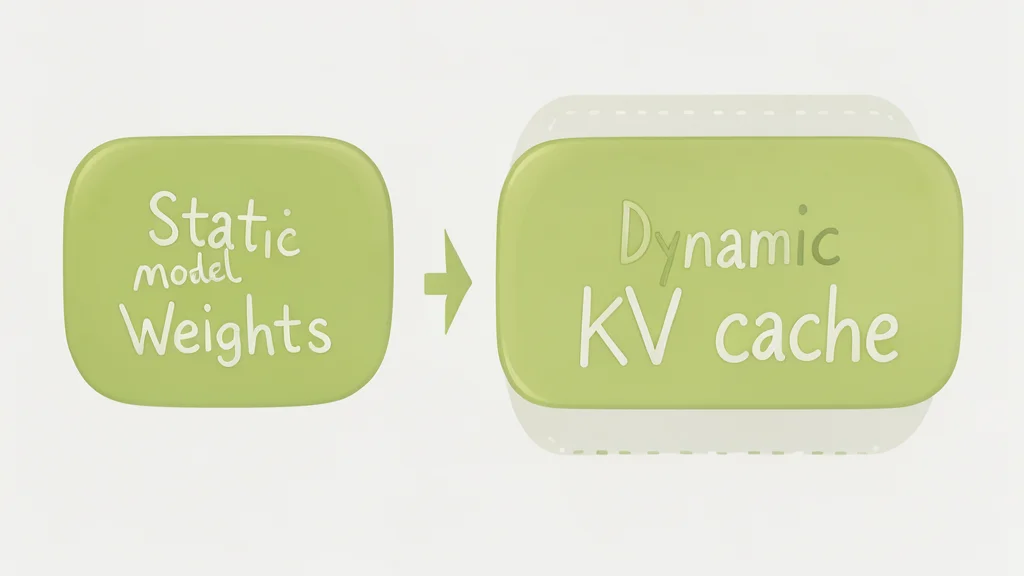
Model weights are static parameters that define the model's knowledge and capabilities. They are loaded once at startup. The KV cache is dynamic; it changes with every request and conversation turn. While weights take up the majority of the initial memory, the KV cache can eventually exceed the weight size in long contexts.
Which is better for 96GB VRAM: 32B or 70B models?
For a 96GB GPU, a 32B model in 8-bit precision leaves ample room for a large context window. A 70B model in 8-bit precision fits but leaves less headroom for the KV cache. If you need long contexts, a 32B model is often more practical. If you prioritize reasoning quality and can manage shorter contexts, a 70B model is superior.
What is quantization?
Quantization reduces the precision of the model's weights from 16-bit floating point to lower bits (e.g., 8-bit, 4-bit). This significantly reduces the memory footprint, allowing larger models to fit on smaller GPUs. The trade-off is a slight reduction in model quality, though modern quantization methods preserve most capabilities.
How does context length affect VRAM usage?
Context length directly determines the size of the KV cache. Doubling the context length roughly doubles the memory required for the KV cache. For large models, this can be substantial. If you frequently use long documents, you must allocate more VRAM to the KV cache, leaving less room for the model weights.
What is GGUF?
GGUF is a file format used by llama.cpp and other inference engines. It stores quantized models efficiently. It supports various quantization levels and allows for flexible offloading of layers to CPU or GPU. This format is essential for running large models on hardware with limited VRAM.
Which is better: llama.cpp or Ollama?
llama.cpp offers granular control over memory offloading and KV cache settings, making it ideal for troubleshooting VRAM issues. Ollama is easier to use but abstracts many memory management details. For fine-tuning performance on a 96GB GPU, llama.cpp is generally preferred for its transparency and optimization options.
Understanding the Memory Landscape
When you load a large language model, the total memory requirement is the sum of the model weights and the KV cache. For a 32B model in 8-bit precision, the weights require approximately 32GB of VRAM. This leaves 64GB for the KV cache and other overhead. However, this is a theoretical maximum. In practice, you must account for the inference engine's overhead, which can consume several gigabytes depending on the software used.
The KV cache is the primary source of memory instability. Unlike weights, which are static, the KV cache grows with every token generated and every message sent. If you are running a 24/7 coding assistant, the conversation history can grow indefinitely. Without proper management, the KV cache will eventually consume all available VRAM, causing the system to swap to system RAM or crash. Understanding this growth is key to optimizing your setup.
Static vs Dynamic Memory
Model weights are static and loaded once. The KV cache is dynamic and grows with each token. This distinction is crucial for planning your memory allocation. Static memory is predictable; dynamic memory is not. You must allocate enough VRAM for the worst-case scenario of your context window.
The Cost of Precision
Higher precision models (FP16/BF16) offer better quality but consume twice the memory of 8-bit models. For a 70B model, FP16 requires 140GB, which exceeds the 96GB capacity of a single RTX 6000. Therefore, quantization is often necessary. 8-bit quantization is a sweet spot for balancing quality and memory usage.
Selecting the Right Model Size
For a 96GB VRAM GPU, the choice between 32B and 70B models depends on your primary use case. A 32B model in 8-bit precision uses about 32GB for weights, leaving 64GB for context. This allows for a very large context window, which is beneficial for code review and long-document analysis. A 70B model in 8-bit precision uses about 70GB for weights, leaving only 26GB for context. This limits the context window but offers superior reasoning capabilities.
If your workflow involves processing large codebases or long technical documents, the 32B model is likely more practical. The ability to maintain a long context without hitting memory limits is more valuable than the marginal quality gain of a larger model. However, if your primary task is complex reasoning or code generation with shorter contexts, the 70B model will outperform the 32B model significantly.
32B Models: Efficiency
32B models like Qwen2.5-32B or Llama-3.1-32B offer a good balance of performance and memory efficiency. They fit comfortably in 96GB VRAM with 8-bit quantization, leaving ample room for a large context window. This makes them ideal for 24/7 coding assistants that need to remember long conversations.
70B Models: Quality
70B models like Llama-3.1-70B or Qwen2.5-72B offer higher quality reasoning. However, they consume more memory, leaving less room for context. If you choose a 70B model, you must carefully manage the context window to avoid memory explosions. Quantization to 4-bit may be necessary to fit the model, but this reduces quality further.
Managing KV Cache Growth
The KV cache is the primary culprit behind memory explosions. As the conversation lengthens, the cache grows linearly. For a 70B model, each token in the context can consume several megabytes of VRAM. If you are running a long-running session, this growth can quickly consume the remaining 26GB of VRAM allocated to context. To mitigate this, you can limit the context window size or implement periodic cache resets.
One effective strategy is to use a sliding window approach, where older context is discarded to make room for new tokens. This reduces the memory footprint but may impact the model's ability to reference earlier parts of the conversation. Another strategy is to use quantization for the KV cache itself, which can reduce its size by half. This is particularly useful for long-running sessions where memory is tight.
Sliding Window Context
A sliding window discards the oldest tokens to make room for new ones. This keeps the KV cache size constant, preventing memory explosions. However, it may reduce the model's ability to reference very old information. For coding assistants, this is often acceptable as most relevant code is recent.
KV Cache Quantization
Quantizing the KV cache reduces its memory footprint by half. This is a highly effective way to extend the context window without increasing the model size. Most modern inference engines support this feature. It is particularly useful for large models like 70B, where memory is at a premium.
Inference Engine Configuration
The inference engine you choose plays a significant role in memory management. llama.cpp is highly optimized and allows for granular control over memory offloading. You can specify exactly how many layers to offload to the GPU and how many to keep on the CPU. This flexibility is crucial for maximizing performance on a 96GB GPU. Ollama, on the other hand, automates this process, making it easier to use but less transparent.
For troubleshooting KV cache issues, llama.cpp provides detailed logging and configuration options. You can monitor the memory usage in real-time and adjust parameters as needed. This level of control is essential for maintaining stability in 24/7 workflows. If you are new to local LLMs, Ollama is a good starting point, but you may need to switch to llama.cpp for fine-tuning.
llama.cpp Advantages
llama.cpp offers precise control over memory offloading and KV cache settings. It supports various quantization formats and allows for CPU offloading. This makes it ideal for optimizing performance on high-end GPUs like the RTX 6000. It is also the engine behind many other inference tools, ensuring compatibility.
Ollama Simplicity
Ollama simplifies the process of running local LLMs. It handles memory management automatically, making it easy to get started. However, it abstracts many details, making it harder to troubleshoot memory issues. For power users who need to optimize their setup, Ollama may be too opaque.
Troubleshooting Memory Leaks
A common issue with local LLMs is the perception of a memory leak, where VRAM usage grows indefinitely. In many cases, this is not a leak but rather the natural growth of the KV cache. If the cache is not being purged, it will continue to consume memory until the GPU is full. To verify this, monitor the KV cache size in your inference engine's logs. If it grows linearly with the context, it is working as intended.
If the memory usage grows even when the context is static, it may be a genuine leak. This can be caused by bugs in the inference engine or the model implementation. Updating to the latest version of your inference engine often resolves these issues. Additionally, restarting the inference process periodically can clear any accumulated memory fragments and restore performance.
Identifying Real Leaks
A real memory leak occurs when memory is not released even after the context is cleared. This is rare but can happen due to software bugs. To identify a leak, monitor the memory usage after clearing the context. If the memory remains high, it is likely a leak. If it drops, the growth was due to the KV cache.
Clearing the Cache
Manually clearing the KV cache can help resolve memory issues. In llama.cpp, you can reset the context to free up memory. In Ollama, restarting the service achieves the same result. This is a useful troubleshooting step if you notice performance degradation or memory exhaustion.
Optimizing for 24/7 Workflows
For 24/7 coding assistants, stability is more important than peak performance. A model that runs reliably at a moderate speed is better than one that crashes every few hours. To achieve this, choose a model that fits comfortably in your VRAM with a reasonable context window. A 32B model in 8-bit precision is an excellent choice for this use case, as it leaves ample room for the KV cache.
Implementing automatic cache resets or sliding windows can further enhance stability. These techniques prevent the KV cache from growing indefinitely, ensuring that the system remains responsive over long periods. Additionally, monitoring memory usage and setting up alerts for high usage can help you intervene before a crash occurs. This proactive approach is key to maintaining a reliable local LLM setup.
Stability Over Speed
For 24/7 workflows, prioritize stability over raw speed. A slower but stable model is more useful than a fast one that crashes frequently. Choose a model that fits comfortably in your VRAM and implement memory management techniques to prevent exhaustion.
Automated Maintenance
Automated maintenance tasks, such as periodic cache resets or model reloads, can help maintain performance. These tasks can be scheduled to run during low-usage periods, minimizing the impact on your workflow. This is particularly useful for long-running sessions where memory usage can drift over time.
Comparison with Hosted APIs
Running a local LLM on a 96GB GPU offers significant advantages in terms of privacy and cost, but it also comes with responsibilities. Hosted APIs like OpenAI or Anthropic handle memory management for you, allowing you to focus on your application. However, they charge per token and may have usage limits. Local LLMs require you to manage memory, but they offer unlimited usage and complete data privacy.
For many users, a hybrid approach is the best solution. Use a hosted API for complex reasoning tasks and a local LLM for routine coding assistance. This allows you to leverage the strengths of both setups. For example, you can use a local 32B model for code generation and a hosted 70B model for complex architectural decisions. This approach maximizes efficiency and cost-effectiveness.
Privacy Benefits
Local LLMs offer complete data privacy, as your data never leaves your machine. This is crucial for sensitive projects or proprietary code. Hosted APIs require you to trust the provider with your data, which may be a concern for some users.
Cost Efficiency
While the upfront cost of a 96GB GPU is high, the long-term cost of running a local LLM is lower than paying for API tokens. For heavy users, the investment in hardware pays for itself over time. Additionally, you have full control over the model and its updates, without relying on third-party providers.
Practical Recommendations
For most users with a 96GB VRAM GPU, the Qwen2.5-32B model in 8-bit quantization is an excellent choice. It offers a good balance of performance and memory efficiency, allowing for large context windows and stable 24/7 operation. If you need higher reasoning capabilities and can manage shorter contexts, the Llama-3.1-70B model in 8-bit quantization is a strong alternative.
Regardless of the model you choose, proper memory management is key. Use an inference engine like llama.cpp for granular control, implement KV cache quantization, and monitor your memory usage regularly. By following these best practices, you can run powerful local LLMs reliably and efficiently on your high-end hardware.
Top Model Choice
Qwen2.5-32B in 8-bit quantization is recommended for most users. It fits comfortably in 96GB VRAM with a large context window, making it ideal for coding assistants and long-document analysis. It offers a good balance of quality and efficiency.
Key Configuration Tips
Enable KV cache quantization, use a sliding window if necessary, and monitor memory usage. These steps will help you maintain stability and performance over long periods. Regular updates to your inference engine will also help resolve any memory-related bugs.
Test a hosted free uncensored LLM before you download anything and see how it handles your most demanding prompts.
Home →