 APIsFreeLLM
Optimizing Local Inference with Apple Silicon’s NPU
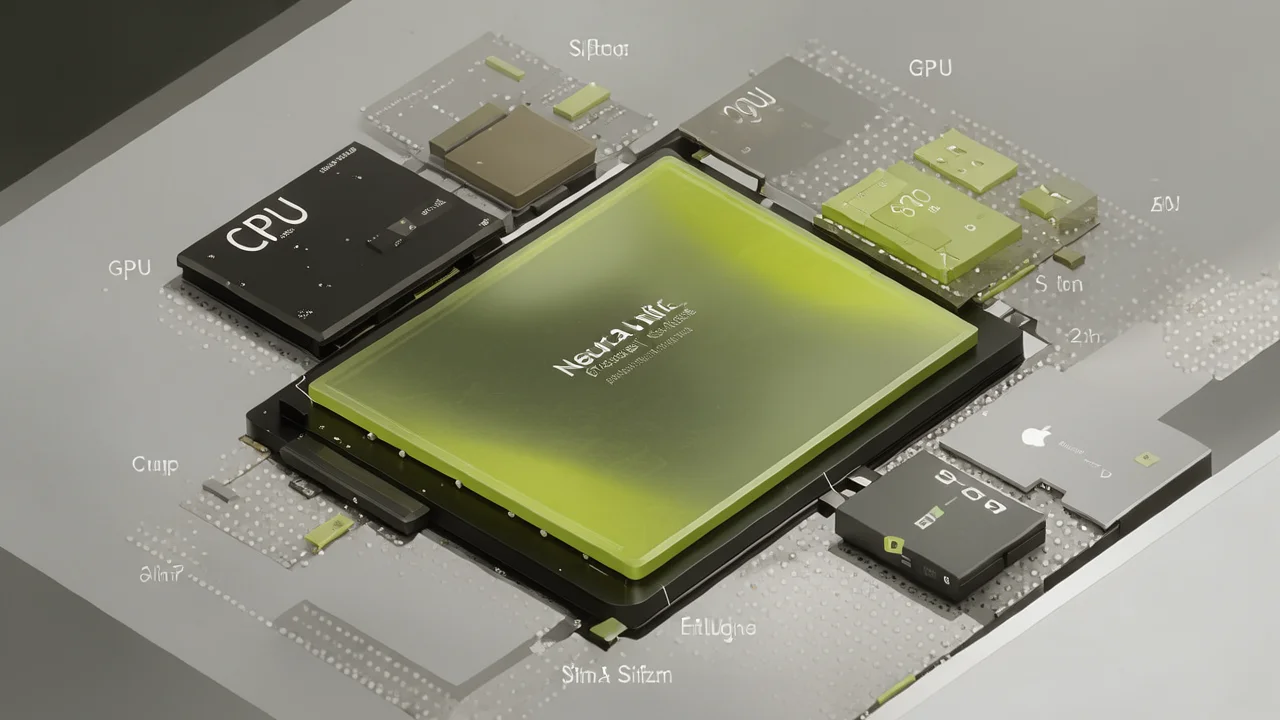
Apple Silicon chips integrate a dedicated Neural Engine (NPU) alongside CPU and GPU cores, creating a unique hardware architecture for machine learning workloads. Unlike traditional GPUs that handle general parallel processing, the NPU is specialized for tensor operations, offering significantly higher throughput per watt. This specialization allows Mac devices to run large language models locally with minimal energy consumption, preserving battery life during extended inference sessions.
Recent experiments with models like Qwen 3.8 27b FP16 demonstrate that the NPU can sustain inference at a modest speed while drawing only a fraction of the power that a GPU would require. This efficiency is critical for mobile or battery-powered setups, where traditional GPU-heavy inference might drain a laptop battery in under 30 minutes. The GPU remains largely idle during NPU-bound tasks, confirming that the workload is correctly offloaded to the specialized hardware.
Achieving this efficiency requires understanding how to direct inference engines to utilize the NPU rather than falling back to CPU or GPU execution. By configuring quantization formats and inference parameters correctly, you can leverage the NPU for consistent, low-power performance. This guide details the technical steps to configure your local environment for NPU-accelerated inference, ensuring you get the best balance of speed and energy efficiency on your Mac.
Frequently asked questions
What is the Apple Neural Engine in the context of LLMs?
The Apple Neural Engine is a dedicated hardware accelerator within Apple Silicon chips designed for matrix multiplications and tensor operations. For LLMs, it handles the computational heavy lifting of model inference, allowing the CPU and GPU to remain free for other tasks. This specialization results in lower power draw and sustained performance without thermal throttling, making it ideal for long-running local inference sessions.
How does NPU inference differ from GPU inference on Mac?
NPU inference is optimized for energy efficiency, often drawing significantly less power than GPU inference while maintaining adequate throughput for chat interfaces. GPU inference typically offers higher raw speed but consumes more battery and generates more heat. The NPU keeps the GPU idle, allowing for better system responsiveness and extended battery life during model operation, which is crucial for mobile or unpowered scenarios.
Which is better for local LLMs: CPU, GPU, or NPU?
The choice depends on your priority: speed or efficiency. The GPU provides the highest throughput for most models, making it better for rapid prototyping or when power is not a constraint. The NPU offers the best efficiency, sustaining inference at low wattage. The CPU is generally slower but requires no special configuration. For long sessions on battery power, the NPU is often the superior choice due to its minimal power draw.
What model formats work best with the Apple Neural Engine?
GGUF and MLX formats are the most compatible with Apple’s ecosystem. GGUF models, often used with llama.cpp, can be configured to offload layers to the NPU. MLX models are native to Apple’s framework and automatically leverage the NPU for optimal performance. Quantized formats like Q4_K_M or Q8_0 are recommended to balance memory usage and inference speed, ensuring the model fits within the device’s unified memory architecture.
How can I monitor if the NPU is actually being used?
You can monitor NPU usage using Activity Monitor on macOS, specifically looking at the 'NPU' tab in the Energy or System Monitor sections. Additionally, inference engines often provide verbose logging that indicates which device (CPU, GPU, or NPU) is handling specific layers. Tools like `powermetrics` can also show real-time power draw, helping you correlate low wattage with NPU activity.
What is the role of quantization in NPU inference?
Quantization reduces the precision of model weights, typically from 16-bit to 8-bit or lower. This reduction decreases memory bandwidth requirements and increases inference speed on the NPU, which is optimized for lower precision operations. It also allows larger models to fit into unified memory, enabling the NPU to process them without swapping to disk, which would significantly degrade performance.
Can I run 27B parameter models on the NPU efficiently?
Yes, models like Qwen 3.8 27b have been successfully run on the NPU with reasonable throughput. While speed may be lower than GPU inference, the power consumption remains minimal. This efficiency makes 27B models viable for battery-powered operation, providing a good balance between model capability and energy usage for local inference tasks.
How does NPU inference compare to cloud-based API inference?
NPU inference offers privacy and offline capability, as data never leaves your device. While cloud APIs may offer higher throughput and access to larger models, they require an internet connection and ongoing costs. NPU inference is limited by your hardware’s memory and compute power, but it provides a consistent, low-latency experience without dependency on external servers or network reliability.
Step by step
- Install Inference Engine — Download and install llama.cpp or Ollama, ensuring you have the latest version for optimal Apple Silicon support. These engines provide the necessary tools to configure NPU layer offloading and monitor performance.
- Download GGUF Model — Select a quantized GGUF model, such as Qwen 3.8 27b in Q4_K_M format. This format balances memory usage and inference speed, making it suitable for NPU inference on most Mac devices.
- Configure NPU Offloading — Set the `--n-gpu-layers` parameter in llama.cpp or adjust layer offloading in Ollama to direct layers to the NPU. This configuration ensures that the Neural Engine handles the computational workload, reducing power consumption.
- Monitor NPU Usage — Use Activity Monitor to verify NPU activity and `powermetrics` to analyze power draw. Confirm that the NPU is handling the inference workload, ensuring that your configuration is optimized for low power draw and efficiency.
Understanding Apple Silicon Architecture
Apple Silicon chips integrate CPU, GPU, and Neural Engine cores into a single die with unified memory architecture. This design allows all components to share the same memory pool, reducing data transfer latency and power consumption compared to traditional discrete GPU setups. The NPU is specifically designed for matrix multiplications, which are the core operations in transformer-based language models.
The Neural Engine consists of specialized cores that can perform billions of operations per second. These cores are optimized for low-precision arithmetic, making them highly efficient for inference tasks. By offloading layers of an LLM to the NPU, you can significantly reduce the load on the CPU and GPU, leading to lower overall power consumption and sustained performance without thermal throttling.
The Role of Unified Memory
Unified memory allows the CPU, GPU, and NPU to access the same data pool without copying. This reduces latency and power usage, as data does not need to be transferred between separate memory banks. For LLMs, this means the entire model can reside in memory, accessible by all accelerators, enabling efficient layer offloading and faster inference.
NPU Tensor Operations
The NPU is optimized for tensor operations, which are essential for matrix multiplications in neural networks. It handles low-precision data types efficiently, allowing for faster inference with reduced computational overhead. This specialization makes the NPU ideal for running quantized models, where precision is reduced to save memory and increase speed.
- Unified memory reduces data transfer latency
- NPU cores handle tensor operations efficiently
- Low-precision arithmetic optimizes inference speed
- Integrated design minimizes power consumption
Choosing the Right Model Format
The choice of model format is critical for NPU efficiency. GGUF is a widely supported format that allows for flexible quantization and layer offloading. It is compatible with popular inference engines like llama.cpp, which can be configured to utilize the NPU. GGUF models are often quantized to 4-bit or 8-bit precision, balancing memory usage and inference speed.
MLX is another format optimized for Apple Silicon, designed to automatically leverage the NPU and GPU. It provides a seamless experience for running models on Mac devices, with built-in support for efficient memory management. MLX models are typically quantized using Apple’s native tools, ensuring optimal performance on the Neural Engine. See Local vs Hosted Memory for more on managing context windows with these formats.
GGUF Quantization Levels
GGUF supports various quantization levels, from Q4_K_M to Q8_0. Lower quantization levels reduce memory usage and increase inference speed, but may slightly impact model quality. Q4_K_M is a popular choice, offering a good balance between performance and accuracy. Higher quantization levels like Q8_0 provide better quality but require more memory and power.
MLX Native Optimization
MLX models are designed to work seamlessly with Apple’s framework, automatically optimizing layer placement for the NPU and GPU. This reduces the need for manual configuration, ensuring that the model runs efficiently on Apple Silicon. MLX also supports dynamic layer offloading, allowing you to adjust which layers run on the NPU versus the GPU based on available resources.
- GGUF offers flexible quantization options
- MLX provides native optimization for Apple Silicon
- Lower quantization increases speed and reduces memory
- Higher quantization improves model quality
Configuring Inference Engines
Inference engines like llama.cpp and Ollama allow you to configure which device handles model layers. By setting the appropriate parameters, you can direct the engine to use the NPU for specific layers, ensuring efficient power usage. This configuration is crucial for maximizing the benefits of Apple Silicon’s architecture, allowing you to tailor performance to your specific needs.
For llama.cpp, you can use flags like `--n-gpu-layers` to specify how many layers to offload to the GPU or NPU. The engine will automatically distribute layers based on available resources and configuration. Ollama provides a similar functionality, allowing you to adjust layer offloading through its configuration file or command-line arguments, ensuring optimal NPU utilization. See llama.cpp Forks vs Standard for details on which fork offers the best NPU support.
llama.cpp NPU Configuration
In llama.cpp, you can configure NPU usage by adjusting the `--n-gpu-layers` parameter. This flag determines how many layers are offloaded to the GPU or NPU. By setting this value appropriately, you can ensure that the NPU handles the computational load, reducing power consumption and keeping the GPU idle for other tasks.
Ollama Layer Offloading
Ollama allows you to control layer offloading through its configuration file or command-line arguments. You can specify which layers run on the NPU, GPU, or CPU, allowing you to fine-tune performance based on your hardware capabilities. This flexibility ensures that you can optimize inference for both speed and efficiency, depending on your specific use case.
- Use `--n-gpu-layers` in llama.cpp
- Adjust layer offloading in Ollama
- Configure NPU usage for low power draw
- Balance speed and efficiency with layer placement
Monitoring Performance and Power
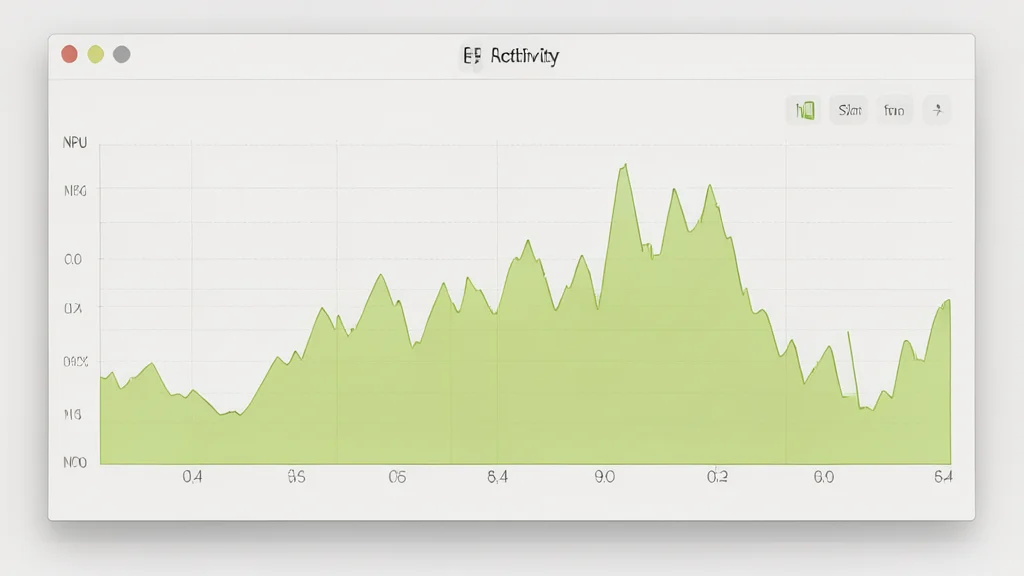
Monitoring NPU usage is essential to ensure that your configuration is working as intended. Activity Monitor on macOS provides a dedicated NPU tab, allowing you to view real-time usage statistics. By observing NPU activity, you can confirm that the Neural Engine is handling the inference workload, rather than falling back to the CPU or GPU.
Power metrics can also be monitored using tools like `powermetrics`, which provide detailed information about power consumption. By correlating NPU usage with power draw, you can verify that the NPU is operating efficiently. This data is crucial for optimizing your setup, ensuring that you achieve the desired balance between performance and energy efficiency.
Using Activity Monitor
Activity Monitor on macOS includes an NPU tab that displays real-time usage statistics. You can monitor NPU activity by observing the percentage of time the NPU is utilized during inference. This data helps you confirm that the NPU is handling the workload, ensuring that your configuration is optimized for low power draw.
Analyzing Power Metrics
The `powermetrics` tool provides detailed information about power consumption, allowing you to correlate NPU usage with energy draw. By analyzing these metrics, you can verify that the NPU is operating efficiently, ensuring that you achieve the desired balance between performance and energy efficiency. This data is crucial for optimizing your setup for long-running inference sessions.
- Monitor NPU usage in Activity Monitor
- Use `powermetrics` for detailed power analysis
- Correlate NPU activity with energy draw
- Verify efficient NPU operation for low power draw
Optimizing for Battery Life
Battery life is a critical consideration for mobile Mac users. By leveraging the NPU, you can significantly reduce power consumption during inference, allowing for longer sessions on battery power. The NPU’s efficiency allows for sustained performance without draining the battery quickly, making it ideal for on-the-go usage.
To optimize for battery life, ensure that the NPU is handling the majority of the inference workload. This can be achieved by configuring your inference engine to offload layers to the NPU. Additionally, using lower quantization levels can further reduce power consumption, as it decreases the computational load on the NPU while maintaining acceptable model quality. See Is CPU-Only Qwen Feasible? to compare NPU efficiency against CPU-only baselines.
NPU Layer Offloading
Offloading layers to the NPU reduces the load on the CPU and GPU, leading to lower power consumption. By configuring your inference engine to direct layers to the NPU, you can ensure that the Neural Engine handles the computational workload, resulting in efficient battery usage during inference sessions.
Quantization Impact on Power
Lower quantization levels reduce the computational load on the NPU, leading to lower power consumption. By using quantized models, you can achieve faster inference speeds while maintaining acceptable model quality. This reduction in precision allows the NPU to operate more efficiently, extending battery life during long-running inference tasks.
- Offload layers to the NPU for lower power draw
- Use lower quantization levels to reduce computational load
- Balance model quality with energy efficiency
- Optimize configuration for extended battery life
Comparing NPU vs GPU Inference
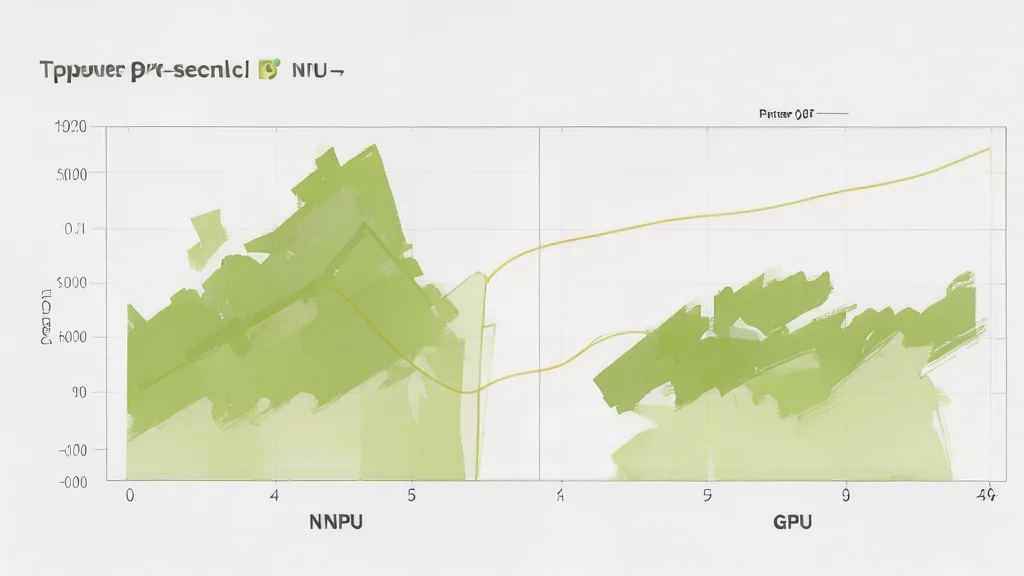
NPU inference is generally slower than GPU inference in terms of tokens per second, but it offers significantly better power efficiency. For users prioritizing battery life, the NPU is the better choice, as it draws less power and generates less heat. GPU inference is suitable for scenarios where speed is more important than power consumption.
The choice between NPU and GPU inference depends on your specific needs. If you are running a model for a short period or have access to a power source, GPU inference may be preferable. However, for long-running sessions on battery power, the NPU’s efficiency makes it the superior option, allowing you to run larger models without draining your battery. See Best Model for 96GB VRAM to understand how GPU constraints compare to NPU limitations.
Speed vs Efficiency Trade-off
GPU inference offers higher throughput, making it faster for short sessions. NPU inference is slower but more energy-efficient, making it better for long-running sessions. The choice depends on whether you prioritize speed or battery life, with the NPU offering a significant advantage in power consumption.
Thermal Management
The NPU generates less heat than the GPU, reducing the risk of thermal throttling. This makes it ideal for sustained inference sessions, where heat buildup can degrade performance. By using the NPU, you can maintain consistent performance over longer periods without experiencing the thermal issues that often affect GPU inference.
- GPU offers higher speed but consumes more power
- NPU provides better efficiency and lower heat generation
- Choose NPU for battery-powered scenarios
- Choose GPU for speed-critical short sessions
Advanced Tuning Techniques
Advanced users can fine-tune their NPU inference setup by adjusting layer placement and quantization levels. By experimenting with different configurations, you can find the optimal balance between performance and efficiency. This process may require some iteration, but the result is a setup tailored to your specific hardware and use case.
You can also explore different inference engines and their specific optimizations for Apple Silicon. Some engines may offer better NPU utilization than others, so testing multiple options can help you find the best performance. Additionally, keeping your drivers and software up to date ensures that you benefit from the latest optimizations and bug fixes.
Layer Placement Optimization
By adjusting which layers are offloaded to the NPU, you can optimize performance based on your specific model and hardware. Some models may benefit from having certain layers on the GPU, while others perform better entirely on the NPU. Experimenting with different configurations can help you find the optimal balance.
Software Updates and Drivers
Keeping your inference engine and macOS drivers up to date ensures that you benefit from the latest optimizations for Apple Silicon. New updates often include improved NPU utilization and performance enhancements, so regularly checking for updates can help you maintain optimal performance and efficiency.
- Experiment with layer placement for optimal performance
- Test different inference engines for best NPU utilization
- Keep software and drivers up to date
- Iterate configurations to find the best balance
Practical Use Cases
NPU inference is ideal for use cases where power efficiency is critical, such as running a local chatbot on a laptop during travel. The low power draw allows for extended usage without needing to plug in, making it perfect for mobile scenarios. Additionally, the NPU’s efficiency makes it suitable for background tasks, where resource usage needs to be minimized.
Another use case is running a local LLM for content generation or data analysis on a Mac with limited power. The NPU’s ability to sustain inference at low wattage allows for continuous operation without draining the battery quickly. This makes it a practical solution for users who need reliable, local AI capabilities without the constraints of a power outlet. See Building Reliable AI Agents to see how NPU efficiency supports continuous agent workflows.
Mobile Chatbot Usage
Running a chatbot on a laptop during travel benefits from the NPU’s low power consumption. This allows for extended usage without needing to plug in, making it ideal for mobile scenarios. The NPU’s efficiency ensures that the chatbot remains responsive while preserving battery life for other tasks.
Background Task Processing
The NPU’s ability to handle inference with minimal resource usage makes it suitable for background tasks. You can run a local LLM for data analysis or content generation without impacting the performance of other applications. This makes it a practical solution for users who need continuous AI capabilities without resource contention.
- Ideal for mobile chatbot usage on laptops
- Suitable for background task processing
- Preserves battery life during extended sessions
- Enables continuous AI capabilities without resource contention
Test a hosted free uncensored LLM before you download anything and see how it handles your most demanding prompts.
Home →